

A lot of CS2 players make use of console commands, but the problem is that you have to type some of them every time you launch the game. Doing that again and again can get repetitive and become annoying pretty quickly.
That’s where CS2 config files help. These files let you save all your commands in one place and run them whenever you need. Here’s what you need to know about Counter-Strike config files and how you can create one yourself.
A CS config file is a text document where you can put all your console commands into one place. All the commands inside the config can be executed at once, meaning you no longer need to type each command one by one. For people who tend to use 10 or more commands for something, a config can save a lot of time.
Configs can be executed automatically every time you launch the game, or you can also activate them manually when you need them – for example, when you’re on a CS2 practice server looking to train your grenade lineups.
Just like all your other CS2 settings, you’re pretty much free to do whatever you’d like with config files, as you can input any command into them. However, most people generally use it to save their in-game settings or group commands into one place.
Many players love saving all their in-game settings in a single config file. This includes keybinds, video settings, audio settings, mouse sensitivity, CS2 viewmodel commands, and all that good stuff. People do this if they regularly play Counter-Strike on different computers.

The best example is professional players, who travel around the world to compete in tournaments. Every time they sit down at a tournament PC, they can execute their config file to instantly apply all of their CS2 config settings.
Another way people use configs is for practice. When you want to train your aim or practice grenade lineups on a private server, you typically have to turn on a bunch of commands – like infinite ammo, unlimited time, or removing bots.
Instead of having to type all of that every time, you can put those commands into one config file and run it every time you load onto a server. That way, your practice setup is ready with a single command, saving you lots of time and effort.
To set up CS2 config files, follow these three steps. Here’s what you’ll need to do:
Now, let’s go over each step:
First, we need to head to the CS2 config location, which can be found in the game’s local files. Follow these steps below to find it:
Once you’ve reached the file destination, we can move on to the next step.
Now that we’re in the config folder, we’re going to create the file. Follow the steps below:

So, in our example, the file name will be “donk.cfg”. The last part is important because it converts the text document into a config file.
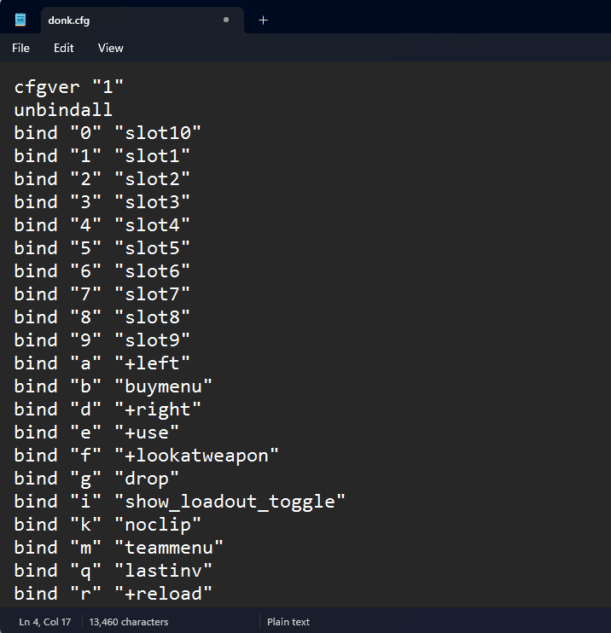
Now, you can open the CS2 config file and enter all the commands you’d like. For our example, we’ll copy all of donk’s CS2 config settings into the file.
Once the first and second steps are completed, you’re pretty much done with the setup. All that’s left is to execute the config file in CS2, which you can either do automatically or manually.
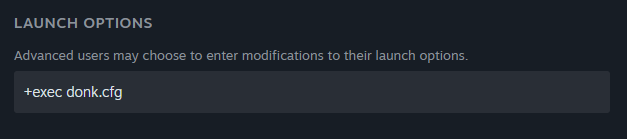
To execute the config automatically, follow the steps below:

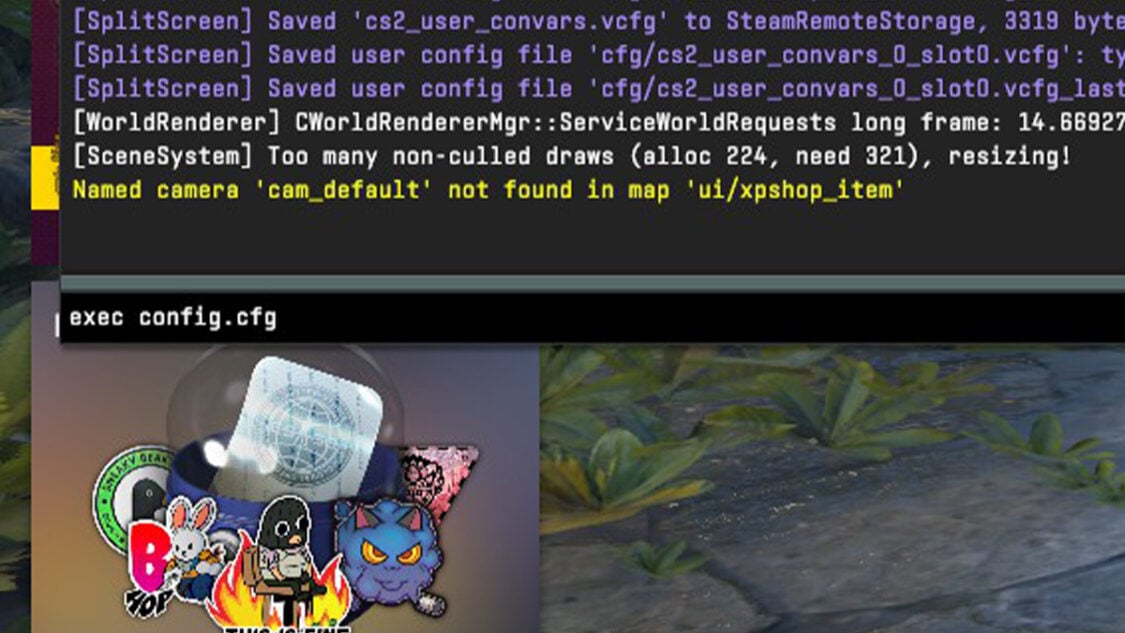
To execute the config manually, follow the steps below:
Of course, make sure to replace “donk.cfg” with the actual name of your own config file!
Normally, configs that include settings and optimizations should be executed automatically using the Launch Options method. Practice or server commands should be executed manually using the console.
And stay up to date on all the latest trends in esports
By submitting your information you agree to the Privacy Policy and Terms of Use