Best The Finals Settings for 2026

David Hollingsworth

Share:

When it comes to dominating in the arena, having the right The Finals settings can give you a huge advantage. The Finals is a fairly complicated shooter, with lots of moving parts, making it crucial that your game is keeping up with what’s going on. We don’t want any FPS drops here.

Best The Finals Settings for 2026

This is especially key in The Finals, as the game’s net code and tick rate are very robust, meaning you need to stay on level with that to take advantage of your enemies.

This guide will focus on The Finals settings to get the best performance from the game, such as Motion Blur and Field of View. The actual level of graphical fidelity will be down to you to decide based on your own PC’s performance. Crucially, we want to make sure the game never dips below our monitor’s refresh rate during gameplay.

Best The Finals Graphics and Video Settings

When it comes to The Finals settings we want to focus on, we’ll look at the ones that impact the game on a wider level, rather than those that change, say, textures, etc.

Below, you’ll find each graphic option you’ll find in The Finals, and how we think you should set them for the best settings.

Display

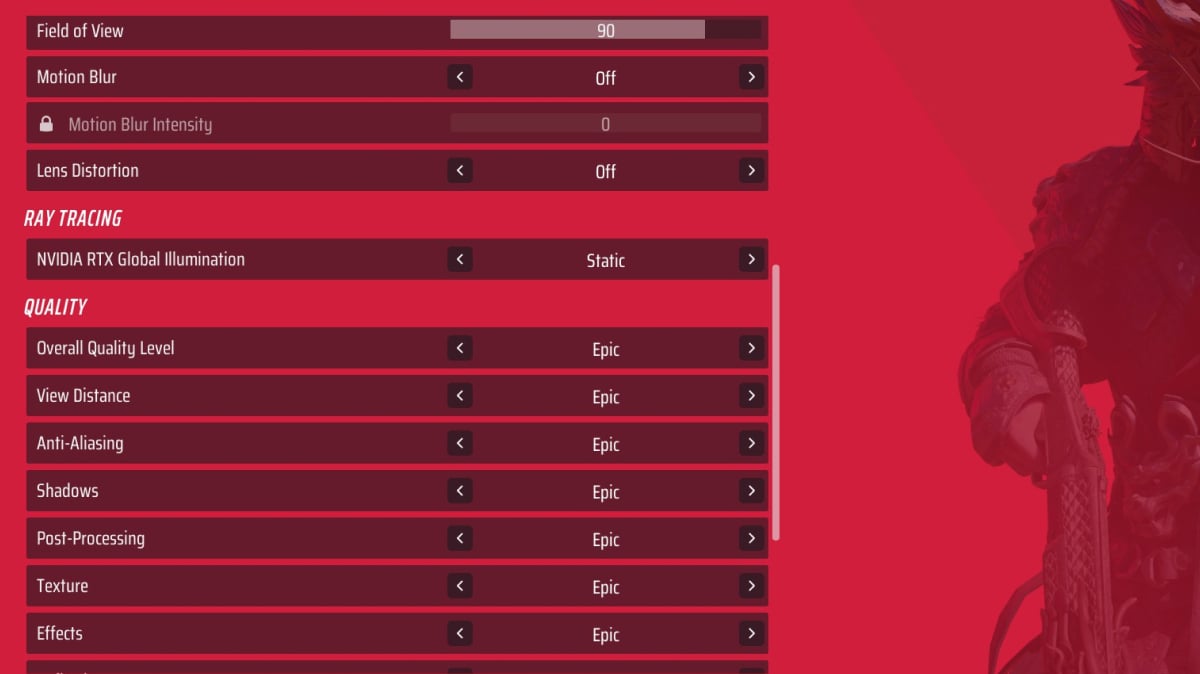
the finals settings video
A look at our video settings
  • Window Mode – Fullscreen
  • Resolution: Native monitor resolution – alternative later in the post
  • AMD FSR 3 Frame Generation – Off
  • VSync – Off
  • AMD Anti-Lag 2 – On
  • NVIDIA Reflex Low Latency: One
  • Resolution Scaling Method: Off
  • Nvidia DLSS: Off

FSR and DLSS can add input latency, so best to avoid.

Resolution

Note, this resolution is purely for people who want to play on “pro” settings, as this resolution has been considered the optimal for top-end FPS titles like CS2, etc

  • Resolution – 1280×960

Graphics

  • Field of View – 90-100 (pick what works best for you)
  • Motion Blur – Off
  • Lens Distortion – Off

Ray Tracing

NVIDIA RTX Global Illumination – Static

Quality

Note, for quality, there are two things to consider. At the highest level, people will often play on lower settings for the most FPS; however, we are not looking for “pro” settings here.

  • Overall Quality Level – Custom
  • View Distance – High (Epic if you can)
  • Anti-Aliasing – Low
  • Shadows – On at least low
  • Post-Processing – High (Epic if you can)
  • Texture – High (Epic if you can)
  • Effects – High (Epic if you can)
  • Reflection – You decide
  • Foliage – Low
  • Global Illumination Resolution – Low

As said above, the quality settings are the most interesting to play around with. Many top players will use low for every graphical setting possible for as high FPS as possible, but the balance there is that the game does not look as good.

Best The Finals Mouse Settings

Lastly, we can look at our input settings to get a bit more precision from our game. We’ll have a few examples of mouse settings and controller settings. There isn’t a correct answer here, but there are a few popular options used by the very best.

For the mouse, you will need to use some common sense and get a feel for the settings yourself; these are just a guide or a starting point.

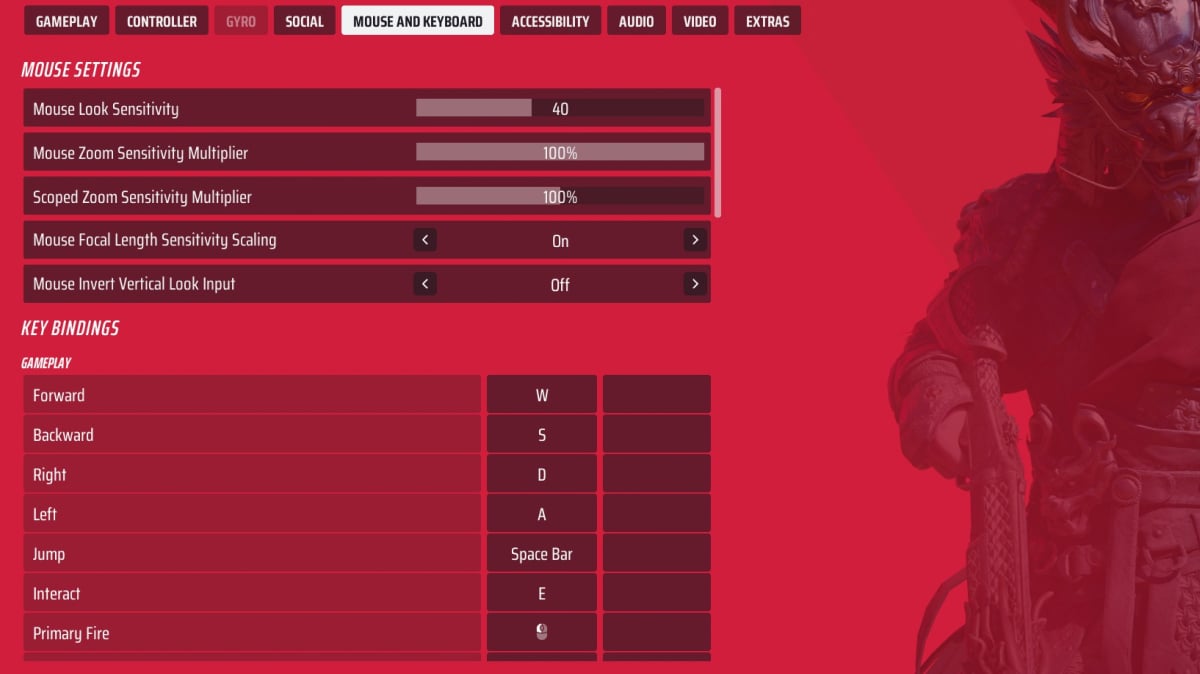
the finals settings mouse
A look at some mouse settings

Example One:

  • Mouse Look Sensitivity – 29
  • DPI: 1450 (not an in-game setting)
  • Mouse Zoom Sensitivity Multiplier – 100%
  • Mouse Focal Length Sensitivity Scaling – On
  • Mouse Invert Vertical Look Input – Off

Example Two:

  • Mouse Look Sensitivity – 40
  • DPI: 1450 (not an in-game setting)
  • Mouse Zoom Sensitivity Multiplier – 100%
  • Mouse Focal Length Sensitivity Scaling – On
  • Mouse Invert Vertical Look Input – Off

Best The Finals Controller Settings

Not much can be done here, but we have a few options to personalise our experience.

  • Look Sensitivity Horizontal – 160
  • Look Sensitivity Vertical – 130
  • Zoom Sensitivity Multiplier – 60%
  • Focal Length Sensitivity Scaling – On
  • Horizontal Look Boost – 220
  • Vertical Look Boost – 0
  • Look Boost Ramp-up Time – 0.5
  • Zoom Horizontal Look Boost – 40
  • Zoom Vertical Look Boost – 40
  • Zoom Look Boost Ramp-up Time – 1
  • Aiming Inner Deadzone – 10
  • Movement Inner Deadzone – 15
  • Invert Vertical Look Input – Off
  • Look Response Curve – Sinusoidal
  • Look Acceleration – 0%
  • Controller Preset – Directional Equipping
  • Sprint Behavior – As you prefer
  • Crouch Behavior – As you prefer
  • Zoom Behavior – As you prefer
  • Aim Assist – On
  • Sensitivity Reduction – On
  • Target Tracking – On
  • Zoom Snapping – On
  • Controller Vibration – Off

Best The Finals Crosshair Settings

The specifics of the crosshair are personal, but we have a few bits of advice that can help you:

  • Colour – Pick something bright that will stand out, yellow, blue, or green. Red is an ok option, but it can clash with some backgrounds. The same goes for orange and pink, though red can be helped with a black background.
  • Centre Dot – On
  • Sight size – This is up to you, but don’t make it too thick or too thin

Experiment with all The Finals settings above to find out what works perfectly for you. But these all give you a good starting spot to build from. Good luck in the arena.

Article Tags

No tags found

Tournaments

No tournaments found
David Hollingsworth

David Hollingsworth

Author
David has spent the last decade plus covering Esports and gaming from League of Legends to World of Warcraft and everything in between. He is primarily a support player in any game, preferring to leave the task of carrying to the younger generation.
More from David Hollingsworth >