Net Graph CS2 Command: How to Enable

Daniel Morris

Share:

In CS:GO, the Net Graph command allowed players to see tons of important in-game information live, including frame rate, ping, and network details. Players would then be able to utilize this data to optimize their game. The Net Graph CS2 command isn’t quite as detailed as the previous version, but it may still be useful to players who want some information about how their game is running.

Net Graph CS2 Command: How to Enable

How to enable Net Graph in CS2

The CS2 iteration of the Net Graph isn’t enabled by a console command. Gone are the days of entering “net_graph” in the in-game console. Instead, you have to head into the settings to use the Net Graph in CS2. First, ensure that you can use CS2 console commands by setting “Enable Developer Console” to “Yes.”

From here, there are a few things you can do, as the Net Graph CS2 iteration isn’t simply one command. First, use these commands to show your FPS:

  • cl_showfps 1: Displays your FPS
  • cl_showfps 2: Displays your FPS, frame 60, 240, and 1000.
  • cl_showfps 3: Displays server ms ping, 60, 240, and 100 server ticks.
  • cl_showfps 4: Displays average FPS, average frame ms, average server ms png.

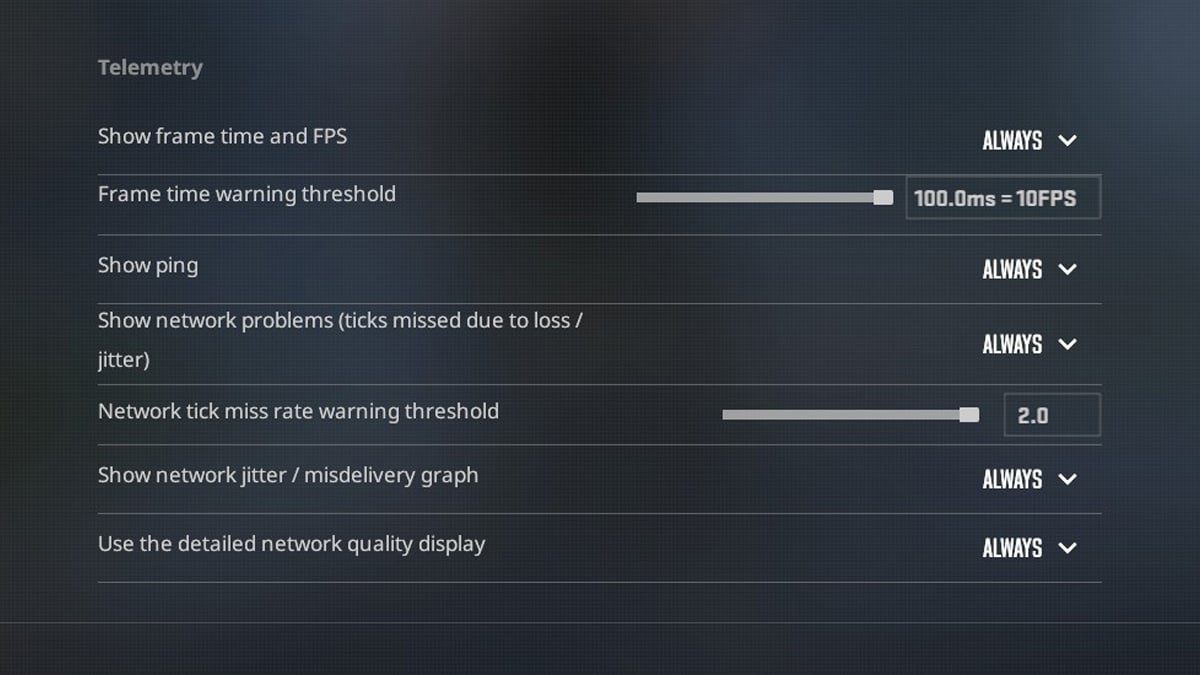
Next, head to your CS2 Telemetry settings. You can find this under the Game tab, under Telemetry. From here, set the following settings to “Always” as shown below:

  • Show frame time and FPS
  • Show ping
  • Show network problems (ticks missed due to loss / jitter)
  • Show network jitter / misdelivery graph
  • Use the detailed network quality display

Telemetry CS2 Settings

If done correctly, this should appear in the top-right corner of your screen while playing CS2.

CS2 Net Graph

So while the Net Graph CS2 command doesn’t quite work as it did in CS:GO, by changing these settings, you’re still able to receive a ton of important information that you can use to optimize your game.

How to turn off CS2 Net Graph

Once you’ve enabled all of the above commands and CS2 Net Graph settings, all you have to do is the exact opposite of what you did to turn them on. If you used any of the cl_showfps commands, you should use “cl_showfps 0” to turn it off.

For the CS2 Telemetry settings, simply switch all of the previous options from “Always” to “Never” to remove the Net Graph information. This should take away all the Net Graph details so that you’re not distracted in-game.

Will Net Graph return in CS2?

At this point, it’s clear that Valve feels the old CS:GO Net Graph is obsolete. Although it was a favorite for many players, the developer has decided that the Telemetry CS2 settings are an adequate replacement for the Net Graph.

As it stands, it’s hard to imagine that Net Graph will fully return in CS2. Never say never, of course, but Valve has shown no indication that it’s willing to bring back the feature any time soon. Valve is still in the phase of bringing back CS:GO features it left behind in the move to CS2, so it’s possible it hasn’t gotten around to it yet, but I wouldn’t count on it.

Article Tags

No tags found

Tournaments

No tournaments found
Daniel Morris

Daniel Morris

Counter-Strike Content Lead
Daniel is a CS2 esports specialist, and now channels that expertise to discuss the game online. Despite his knowledge of Counter-Strike, he wasn’t quite good enough to go pro himself.
More from Daniel Morris >