

If you’re a fan of CS2 skins, you know that purchasing them can prove to be a pricy investment. Skins can look slightly different on Steam, and it can be difficult to imagine what your latest CS2 sticker craft is going to look like before you use it.
Not to fret. You can actually inspect CS2 skins in-game in a variety of ways, and I’m going to show you how to do it.
The first method is to inspect CS2 skins via the Steam Community Market. To do this, open CS2, and Alt+Tab out. Head to the Steam Community Market and find the skin you want to buy.
On the main page for the skin, you’ll find a large button labeled “Inspect in Game…” From here, you just need to press it and open CS2 again. You should be on the main menu, where the skin will be visible to inspect.

If you find a particular sticker craft you like on the Steam Community Market, you can inspect that exact skin using the same method, too.
However, if you want to inspect CS2 skins and sticker crafts in-game on different maps, you’ll need to use inspect servers and a third-party website. This is called cs2inspects.com.
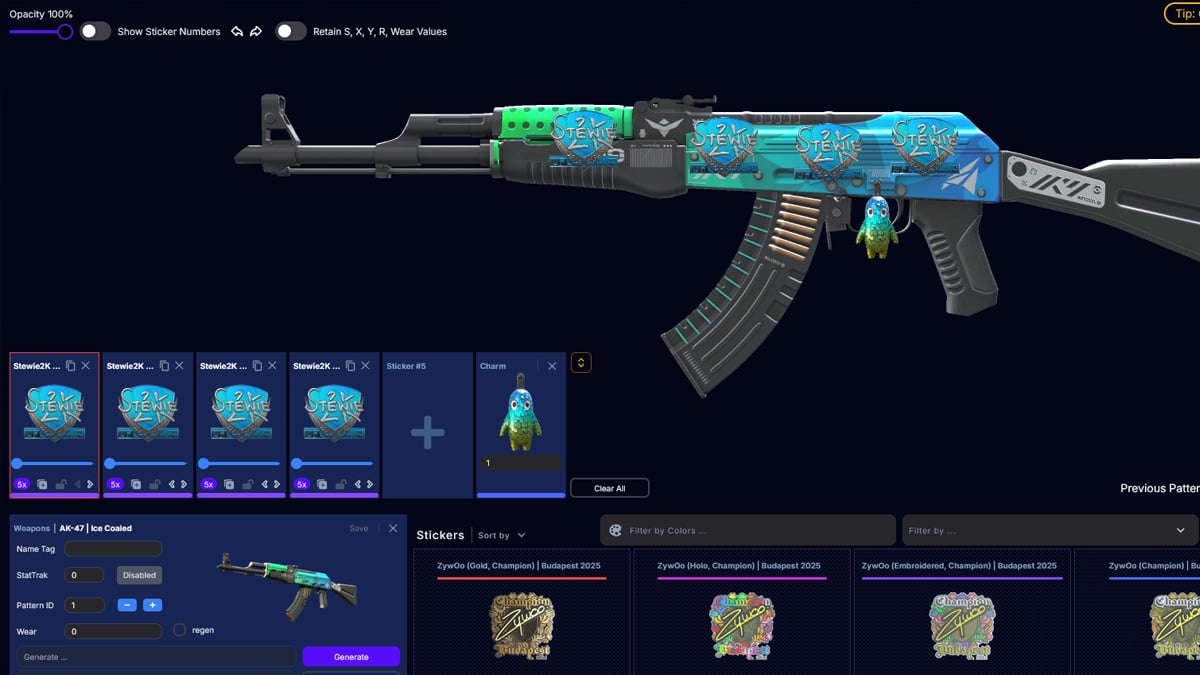
Once on this website, select the skin you want to inspect. You can add stickers and CS2 charms to these weapons, too, and move them around by pressing the Sticker Customizer button. You can see in the image below what this should look like.

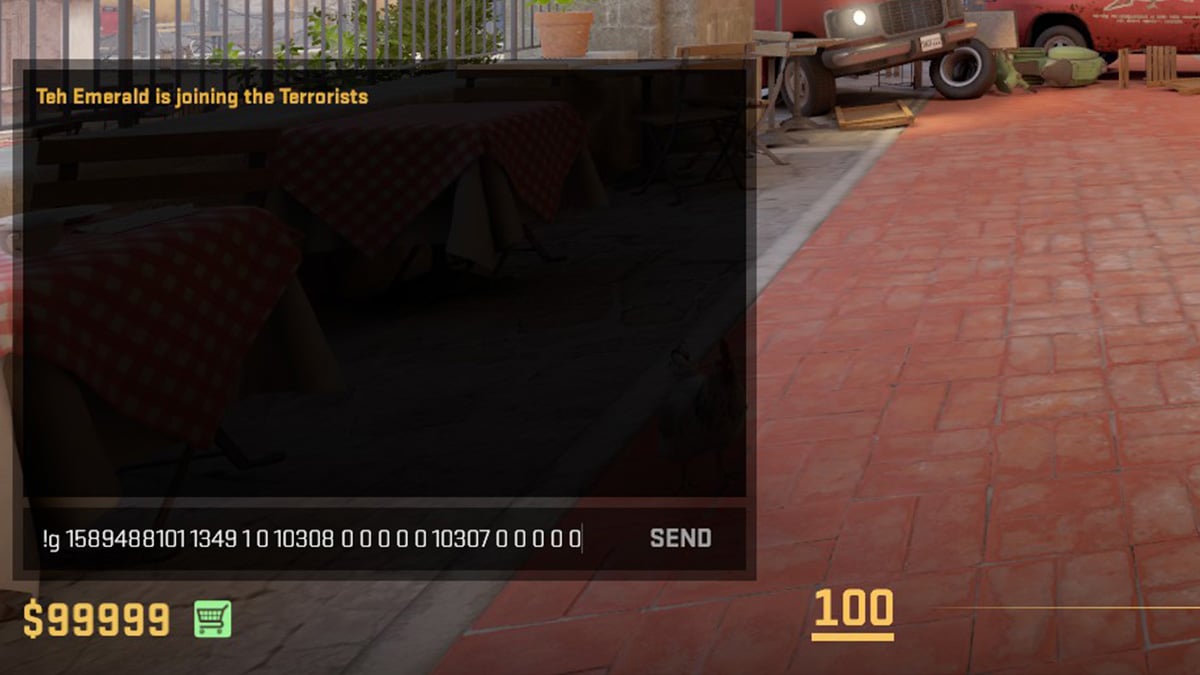
After this, hit the Generate button. This will give you a Gen Code, which should begin with “!g.” Make sure this is copied to your clipboard.
Now, with CS2 open, enter one of the following server IPs into your in-game console. You can inspect CS2 skins of various maps with these awesome servers from Epidemic.
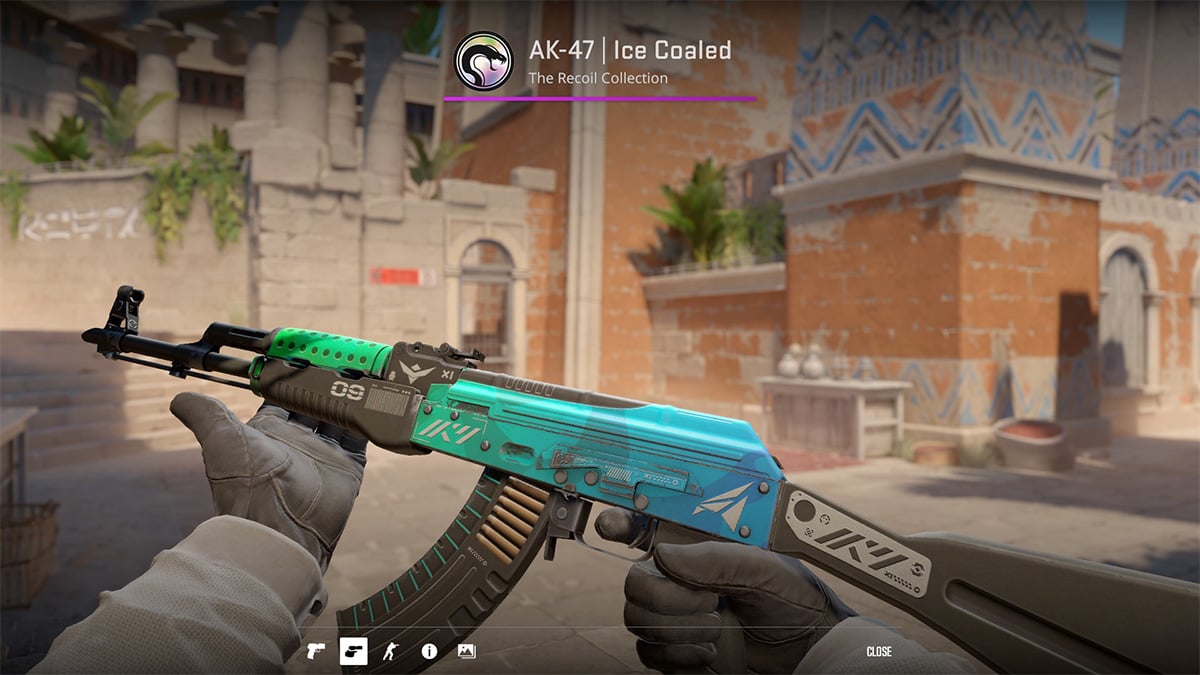
Once you’re loaded into the server, open the in-game chat and paste your Gen Code. It should look like the image below, and hit Enter. I use these servers to take screenshots of my own sticker crafts.

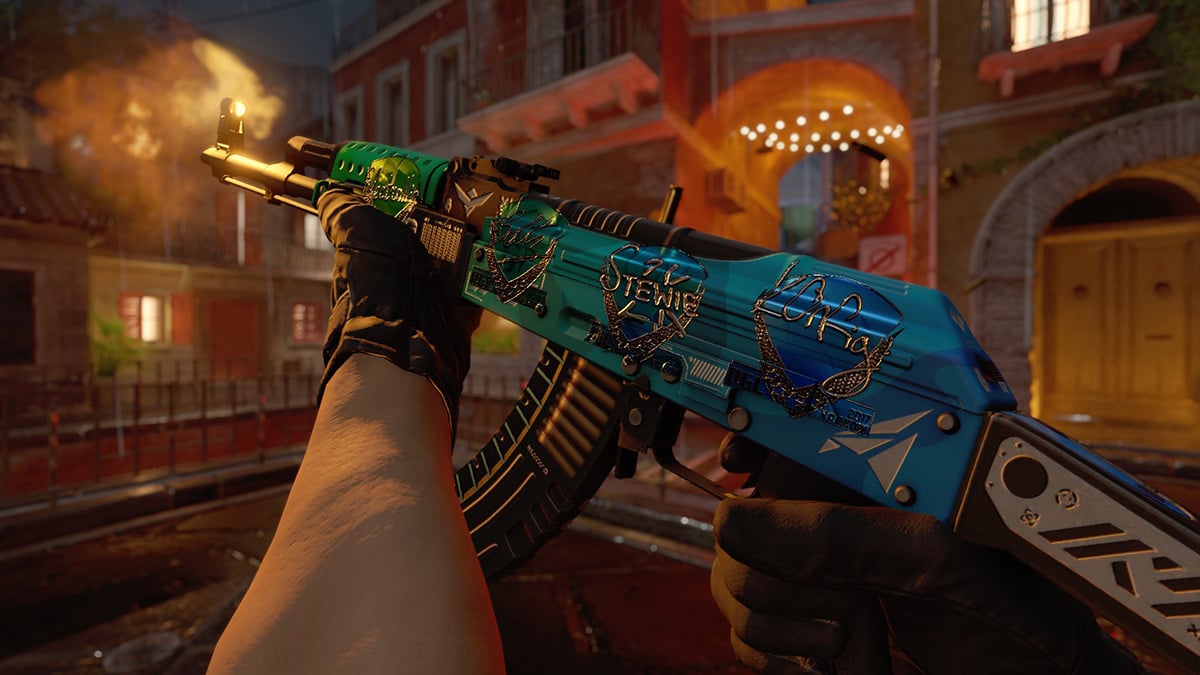
Voila! You just have your new CS2 sticker craft in hand and ready to see how it looks in-game, without spending the money to put it together. You can do this as many times as you want with different skins and sticker combos.
Beyond just inspecting CS2 skins, many players like to take screenshots of skins as a way to commemorate them permanently. It’s a great way to show off particularly cool crafts. Some even make money from creating highly edited screenshots on CS2 skin inspect servers.
When learning how to inspect CS2 skins, enter the following commands to take some great screenshots:
Here’s an example of what you can do with these CS2 console commands.

Using “cl_drawhud false” simply removes the HUD, making for a clearer screenshot. Then, “cl_lock_camera true” locks your camera in place, meaning you can inspect the CS2 skin much closer, and see all the details. The final three commands add automatic depth-of-field within CS2, meaning you don’t even have to add it in with image editing software. With this, you can take some epic CS2 skin screenshots. If you’re serious about creating great CS2 screenshots while inspecting, you can even color grade your images afterward, although this isn’t needed for casual players.
And stay up to date on all the latest trends in esports
By submitting your information you agree to the Privacy Policy and Terms of Use