





Picking the right crosshair in CS2 is the key to improving your aim, but there are thousands of different crosshair variations to choose from. Though there’s no single “best” crosshair, many players prefer the dot crosshair style because it’s clean and precise. In this guide, we’ll explain what a dot crosshair is and show you how to set it up yourself.
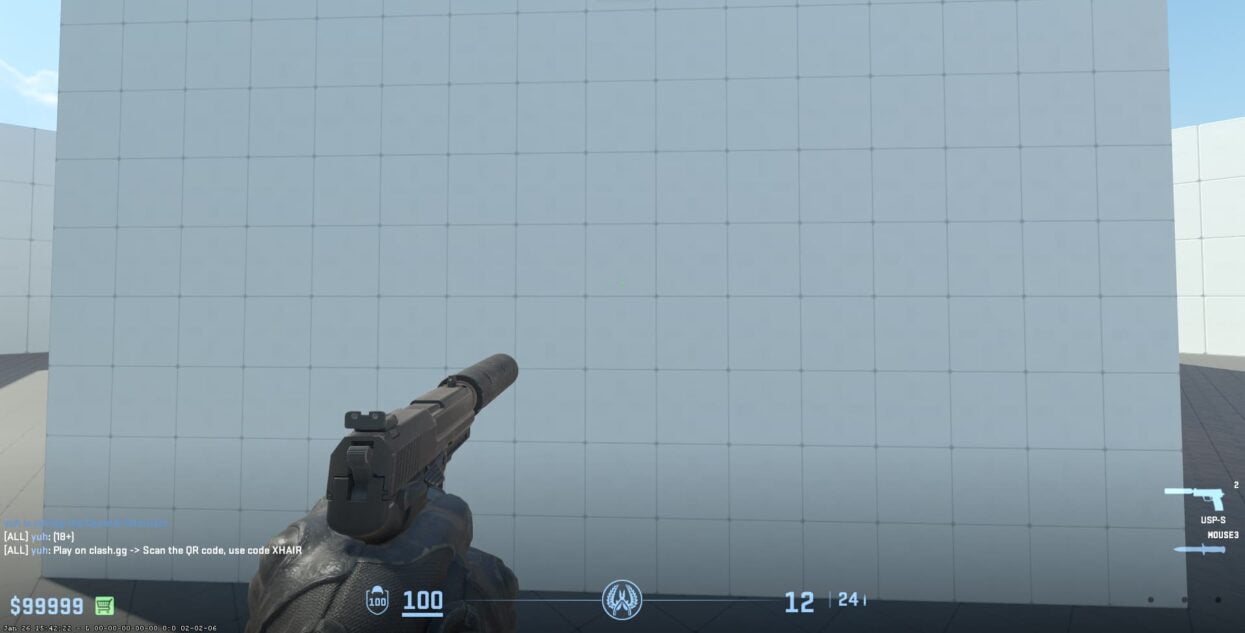
A dot crosshair in CS2 is exactly what it sounds like. You simply have a single dot in the center of your screen that serves as your crosshair.
Normally, your typical standard crosshair has four lines, which are horizontal and vertical. However, a dot crosshair removes all of these lines and replaces them with a single dot in the center of your screen. This crosshair type is popular among players who rely on precise crosshair placement and muscle memory.

That said, dot crosshairs aren’t for everyone. They require lots of confidence in your aim, as they offer less visual guidance than your traditional or funny CS2 crosshair.
If you’re wondering whether a dot crosshair is the right fit for you, here are the main pros and cons:
Pros of Dot Crosshairs
Cons of Dot Crosshairs
As we’ve mentioned earlier, the dot crosshair isn’t for everyone – but there’s no harm in trying it out. If you’re looking to give the dot crosshair a spin, here are three ways to set one up!
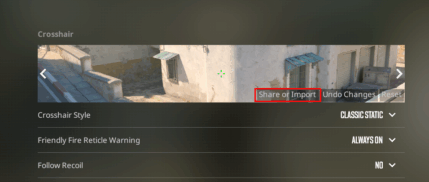
The easiest way to get a dot crosshair with minimal effort is by finding a crosshair code and importing it into your game.
Here is how you can use a dot crosshair with a crosshair code:

Here are some crosshair codes of dot crosshairs you can try out:
| Dot Crosshair | Crosshair Code |
| ScreaM’s Cyan Dot Crosshair (With Outlines) | CSGO-JaEHu-LMuQP-8jUiN-3Xsbf-S5LsE |
| EliGE’s Extra Tiny Dot Crosshair (With Outlines) | CSGO-PKWyV-5oamM-nMF2Q-wQZzG-UTOAK |
| xertioN’s Dot Crosshair (With Gap in Middle) | CSGO-NW8HD-EX8jK-M3cWd-2xZUw-XrDmQ |
| kyuubii’s Dot Crosshair (With No Outlines) | CSGO-wCGQe-akBeS-oCaOf-9Kqui-sEpYF |
Feel free to copy any of these crosshair codes and import them to your game!
If you want to try crafting your own dot crosshair and add personal adjustments, another way to set one up is by using CS2 console commands. The beauty here is that you can input your own numbers to control how the crosshair would look like.
First, you’ll have to enable the developer console:
Now, you can paste the following commands (you can also change the values to whatever you’d like):
| Console Command | Function |
| cl_crosshairsize 0 | This is the crosshair command that removes the four lines. |
| cl_crosshairdot 1 | Enables the crosshair dot in the middle, which essentially is your whole crosshair. |
| cl_crosshairthickness # | Adjusts how big the dot appears. Use values like 1, 2, 3, 4, etc. |
| cl_crosshair_drawoutline # | Determines whether the dot crosshair has outlines. Use 1 to enable the outlines. Use 0 to disable the outlines. |
| cl_crosshaircolor # | This command is used to change the color of your crosshair. |
You can use these commands as many times as you’d like. Make sure to hop into a private server so you can see and immediately test out the changes.
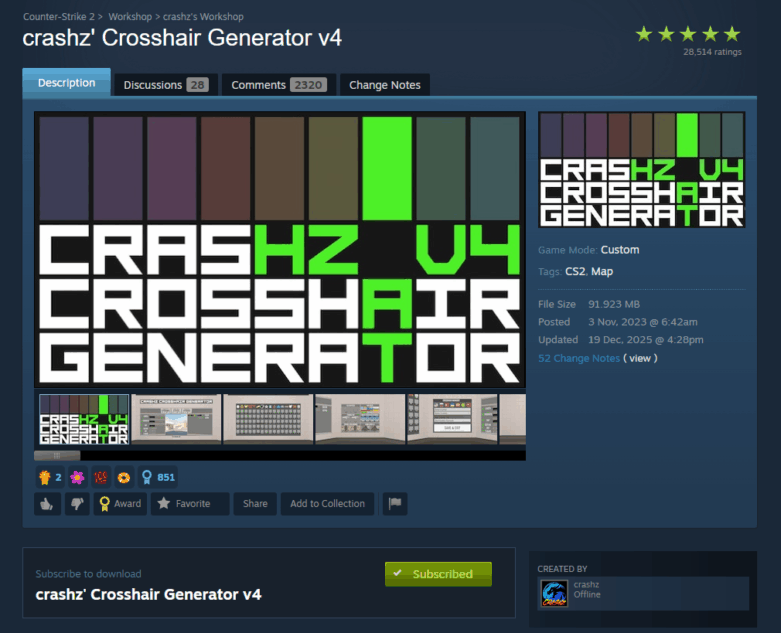
If you prefer to customize your own crosshair without entering confusing commands into your console, we have one final method. You can download CS2 Workshop Maps that are made specifically to help you pick a good crosshair.
The most popular map for this purpose is called Crashz’ Crosshair Generator. It is a Community Workshop Map you can download for free from the Steam Workshop.

Here’s how you can download the map:
On the map, you will see a handful of buttons that allow you to change how your crosshair looks in real time. You can adjust the size, shape, thickness, and more!
There is also a wall of professional CS2 crosshairs. You pick a dot crosshair that you like, and that crosshair will immediately be applied.
And stay up to date on all the latest trends in esports
By submitting your information you agree to the Privacy Policy and Terms of Use