CS2 Crashing: Fix Counter-Strike 2 Crashes Mid-Game and On Launch

Owen H

Share:

You’re in a 1v1 clutch, playing your rank-up game. You take on your opponent head-on, and your crosshair is at the right place – all you need to do is shoot. Then, boom! Your game crashes, and your keyboard is smashed. 

CS2 Crashing: Fix Counter-Strike 2 Crashes Mid-Game and On Launch

For CS2 players, there’s nothing more frustrating than crashing in-game, or not being able to play the game at all since the game keeps crashing when you launch it. In this article, we’ll offer eight effective solutions to fix CS2 crashing issues. 

Best CS2 Crashing Fixes You Can Try

This guide will focus on several proven methods you can use to reduce – or completely fix – CS2 crashes. Keep in mind that no single fix works for everyone, so applying multiple solutions will improve your chances of resolving the issue. 

Verify Integrity of Game Files

The first solution is extremely simple, yet it’s often overlooked. You might be surprised how many CS2 crashing on launch issues this method has successfully resolved.

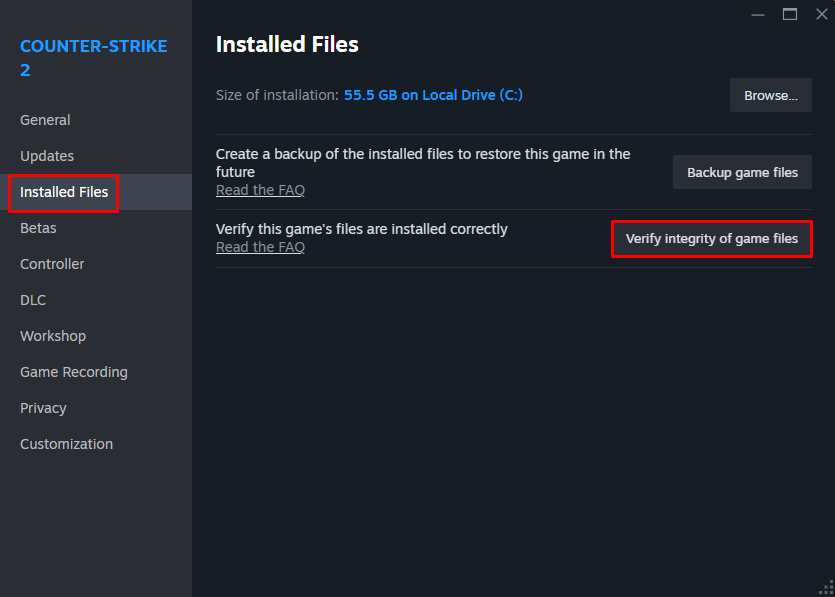
One of the most common causes of CS2 crashing is due to corrupted or missing game files, which is why we’re going to verify them. Here’s how you can verify the integrity of your game files:

  1. Exit Counter-Strike 2 and open the Steam Library.
  2. Then, look for CS2.
  3. Right-click CS2 and go to Properties.
  4. Under Installed Files, click “Verify integrity of game files.”
Verify Integrity of Game Files

This should take around 5 to 10 minutes, so you’ll have to wait a little bit. Steam will check your game files, deleting corrupted files and replacing missing ones. It’s also a good idea to verify your files regularly, even when you’re not suffering from crashes. 

Optimize CS2 Settings

Another common issue that leads to CS2 crashing is running graphics settings that are too demanding for your system. Remember: CS2 is a pretty heavy game, and not every computer can run it properly. So, it’s important to tone down your video settings.

Make sure to check your CS2 graphics and video settings and give it a proper look. It’s best to sacrifice good graphics for better performance, especially if it can solve crashing issues. 

We recommend lowering all of your graphics settings except for Global Shadow Quality. Another effective performance booster is using a stretched resolution, which not only fixes CS2 crashes but also gives you a huge boost in FPS. 

Use CS2 Launch Options

Aside from in-game settings, there are other ways to optimize CS2’s performance, and that’s through launch options. Launch options are settings that are immediately applied every time you launch the game, and can be an effective solution to CS2 crashing on startup. 

To add or remove launch options, follow the steps below:

  1. Exit Counter-Strike 2 and open the Steam Library.
  2. Then, look for CS2.
  3. Right-click CS2 and go to Properties.
  4. Under General, look for “Launch Options.”
  5. Here, type your desired launch commands in the text box provided. 

Here are some launch options we recommend applying:

Launch Option Function
-novid Removes the trailer video every time you launch the game, leading to faster startup and less crashing from lag. 
-high Makes CS2 a high-priority program, meaning your computer will pool in more resources to ensure it runs smoothly. 
-nojoy Disables joystick support, which can free up more memory and lead to improved performance.
-fullscreen Ensures the game launches in Fullscreen mode, which is ideal for performance and preventing CS2 crashing. 
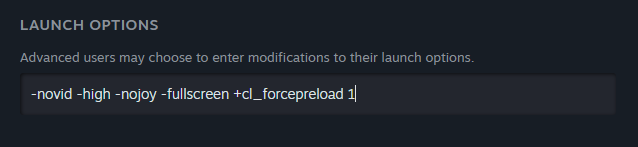
+cl_forcepreload 1 Preloads all maps, reducing lag in-game. This option can prevent CS2 from crashing while you’re in-game. 

If you’ve chosen to use all of the options we suggested, your launch options settings should look something like this:

CS2 Launch Options
CS2 Launch Options

Update Your GPU Drivers

Graphics drivers are responsible for how your game runs, so ensuring they are up to date is crucial for solving issues, especially CS2 crashing when tabbing out. 

The way to update drivers depends on the manufacturer you use. Typically, you can visit the website and manually update your drivers there. Or, you can download applications like the NVIDIA Control Panel or AMD Control Panel and have a look there. 

If you’re having a difficult time updating your NVIDIA or AMD CS2 settings manually, you can download software like Driver Easy, which can do the deed for you. 

Disable Background Applications and Overlays

CS2 requires a healthy amount of available RAM to run smoothly, and one of the most common ways to fix CS2 crashing is to avoid having too many background apps eating up memory.

Remember that applications like Discord, Spotify, or Google Chrome (and other browsers) can consume a lot of memory. So, be sure to close anything you don’t need when playing CS2. 

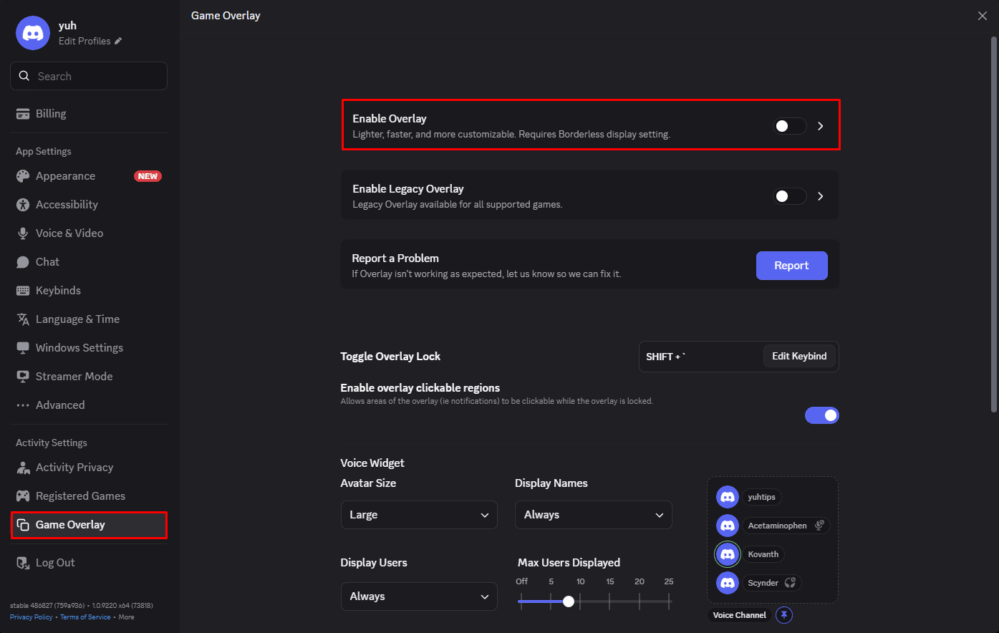
Additionally, it’s a good idea to turn off overlays like Discord Overlay. To turn this off, follow the steps below:

  1. Open Discord and go to your Settings.
  2. Look for the Game Overlay section.
  3. Finally, look for “Enable Overlay” and make sure it is unchecked. 
Discord Overlay
Discord Overlay

Look for other overlays that are silently running in the background, like Windows Game Bar, too!

Set CS2 to High Priority Mode

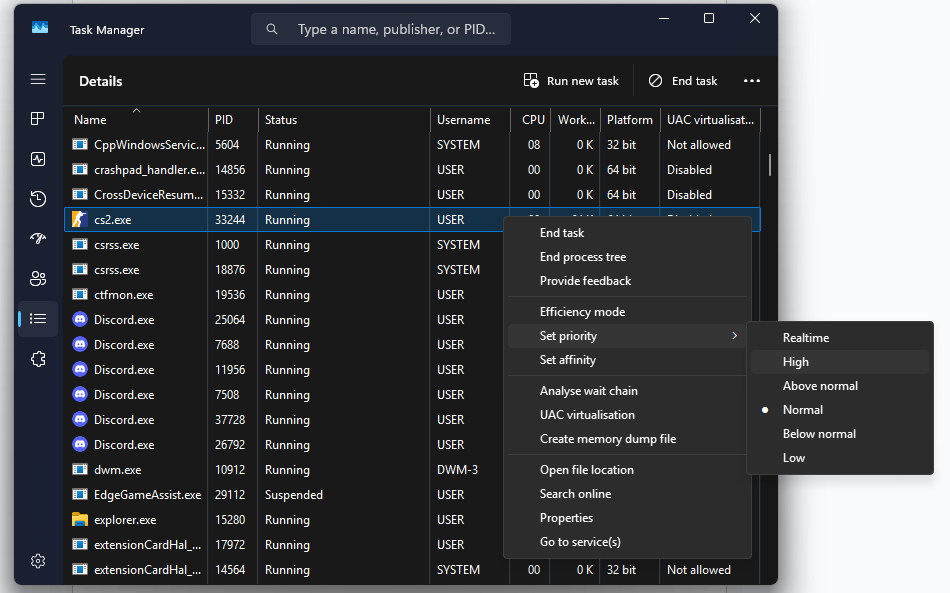
For the next method, we’re going to set CS2 to High Priority mode through the Task Manager. This pretty much tells Windows to allocate more resources to CS2 over other applications, which can help reduce performance drops and crashes.

Here’s how you can change CS2’s priority:

  1. Launch CS2 and keep it open.
  2. Then, open the Task Manager by holding Ctrl + Shift + Esc.
  3. On the left, go to Details, which has the three-line icon. 
  4. Look for cs2.exe, then right-click it.
  5. Hover over Set Priority, then select High
CS2 High Priority Mode

Doing this will slow down background processes like other applications or browsers, but only when CS2 is running. 

Ensure Your PC is in High Performance Mode

We’ve set CS2’s priority to high, but we can also make your computer enter High Performance Mode by tweaking some Windows settings. 

Follow these steps to enter High Performance Mode:

  1. Open your Control Panel, then go to Hardware and Sound.
  2. Next, look for Power Options, and select Choose a power plan.
  3. Under Preferred plans, go to Change plan settings.
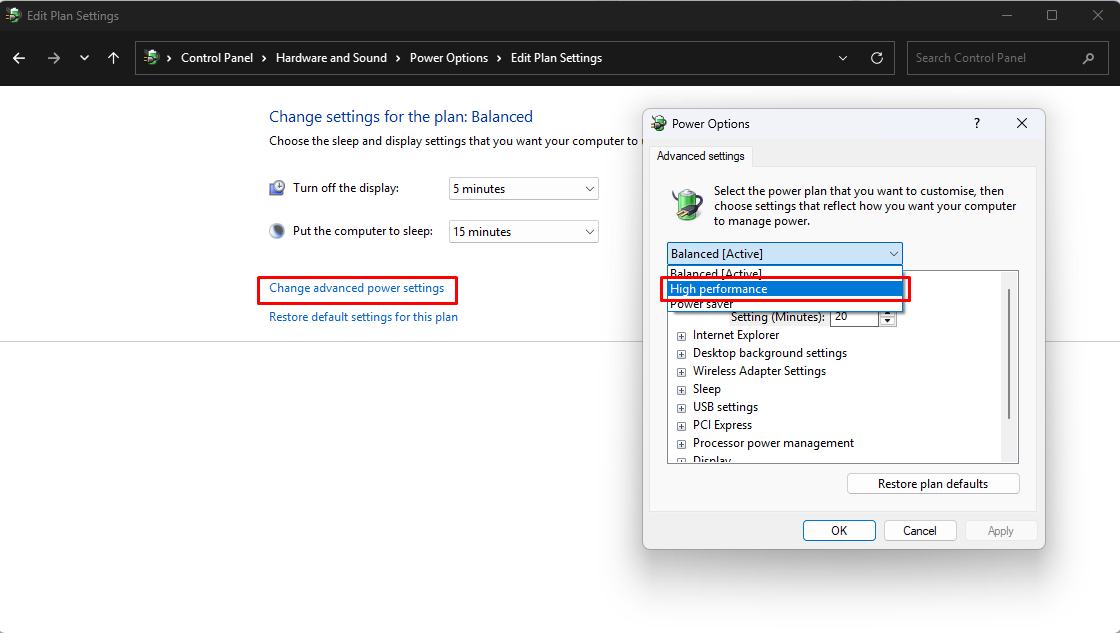
  4. If your plan is Balanced, click Change advanced power settings.
  5. Under Power Options, click the drop-down menu and change the plan to High performance.
Windows High Performance Mode

Note that, if you’re applying this on a laptop, your battery will run out quickly, so make sure your device is plugged in while playing CS2. 

Manage Computer Overclocking

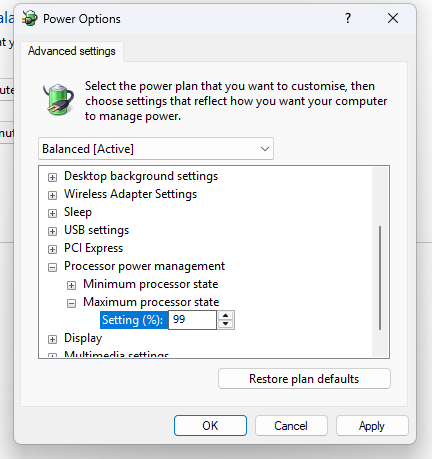
The final step is to balance your computer’s processor state. Here, we’re going to make sure the computer is running at full capacity, while also preventing it from overclocking, which can cause CS2 crashing when tabbing out. 

To do this, we are going to stay on the same screen as the previous method, which is under Power Options. Follow these steps below:

  1. Look for Processor power management and expand the drop-down menu. 
  2. Here, you will see the Minimum and Maximum processor state.
  3. Set the Minimum processor state to 99%.
  4. Then, set the Maximum processor state to 99%
  5. Finally, hit Apply to save your changes.
Setting PC Processor State

What this does is ensure your computer is running at 99% capacity at all times. You’re pretty much running it on almost full capacity, but you’re capping it at 99% to prevent your computer from overclocking. 

Article Tags

No tags found

Tournaments

No tournaments found
Owen H

Owen H

Dota 2 writer
Owen is as competitive as it gets, choosing to play the holy trinity of Dota 2, CS2 and Valorant with a primary focus on the former. He peaked at 8,500 MMR in Dota 2 and follows the professional scene religiously. You can still catch him as a regular on the Southeast Asian leaderboards.
More from Owen H >