

Best CS2 Audio Settings: Optimized Sound Guide (2026)

Owen H

Share:

Sound plays a crucial role in Counter-Strike 2, helping you hear footsteps and pinpoint the direction of gunfights. However, not every source of sound is actually useful. In this guide, I’ll show you the best CS2 sound settings so you only hear what truly matters in a match. 

Best CS2 Audio Settings: Optimized Sound Guide (2026)

Best CS2 Audio Settings

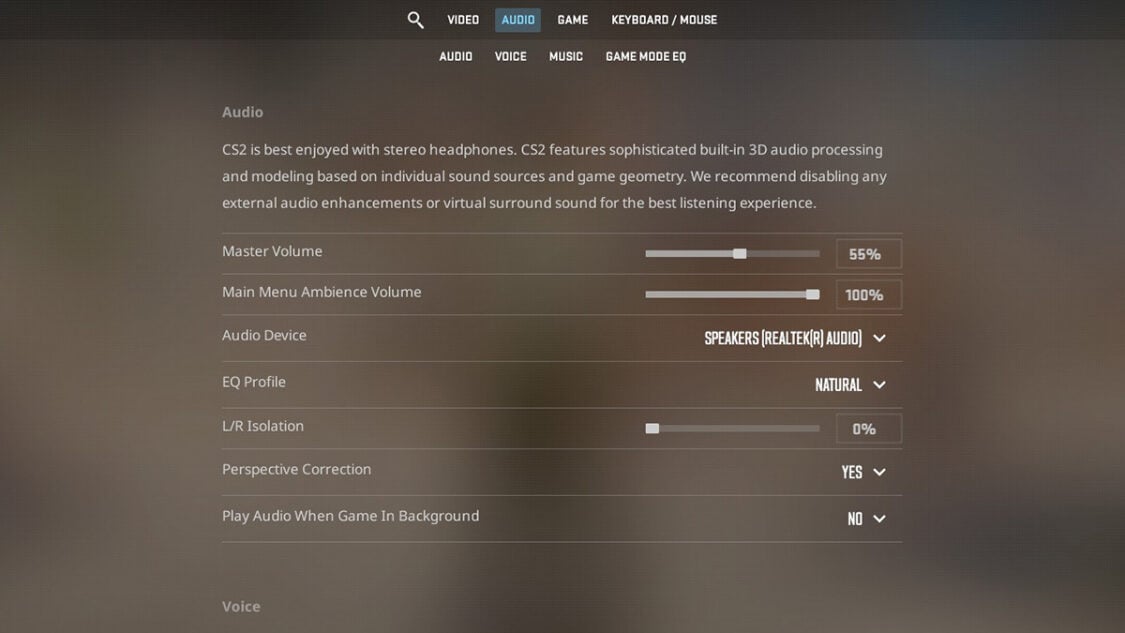
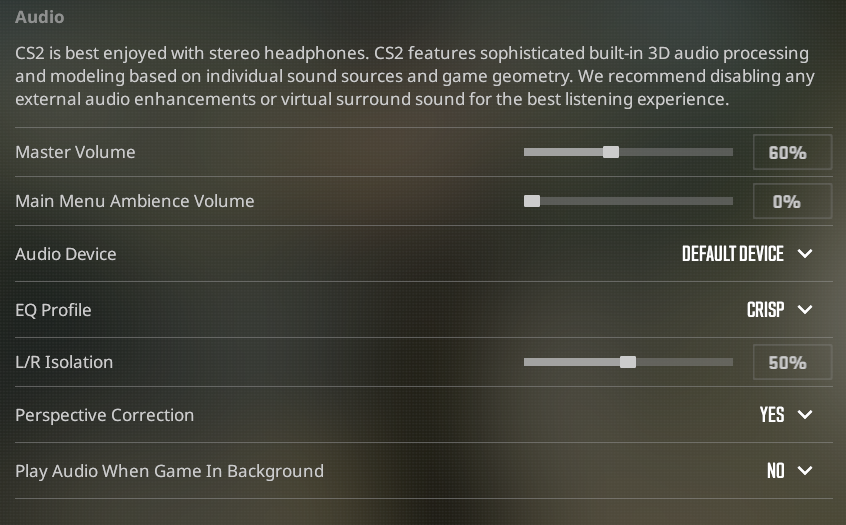
When you first open the CS2 audio settings menu, these are the first options you’ll see. Some of them matter a lot in-game, while others just add unnecessary noise. 

Audio Settings Recommendation Reasoning
Master Volume 60% – 75% Your Master Volume should be high enough to listen to the slightest footsteps, but not destroy your ears. 
Main Menu Ambience Volume 0% There’s nothing going on when you’re on the main menu, so there isn’t any need to have volume on here. Still, this comes down to personal preference. 
Audio Device [Your Headphones] Look for your headphones and set them as your selected audio device. Otherwise, you won’t be able to hear. 
EQ Profile Crisp or Natural A Crisp EQ Profile is generally best for competitive play. Sounds are clear and distinguishable. Natural also works if you want to keep things normal and simple. 
L/R Isolation 50% In my opinion, playing on 50% L/R Isolation strikes the perfect balance. 
Perspective Correction Yes Turning Perspective Correction will help you identify the direction of sounds clearly. This helps you hear footsteps better in CS2. 
Play Audio When Game In Background No This primarily comes down to personal preference, but there isn’t much reason to enable this. 

Most of these come down to personal preference, so make sure to test things out like the EQ Profile and L/R Isolation to see what feels best. It might take weeks before you finally settle on the “best” settings for yourself. 

CS2 Audio Settings
CS2 Audio Settings

Best CS2 Voice Settings

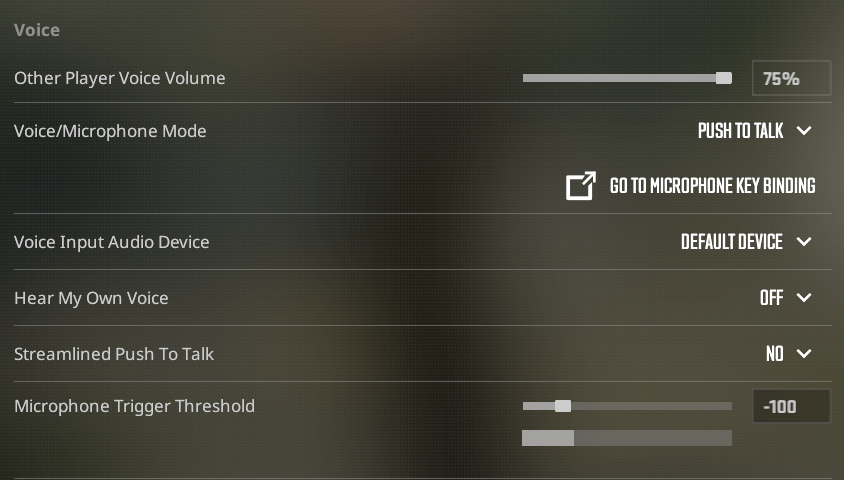
Screaming Russians, teammates flaming each other mid-round, and that one guy whose mic turns on when they cough – this is all part of the CS2 ranked experience. However, here are some voice settings you can copy to filter the chaos. 

Voice Settings Recommendation Reasoning
Other Player Voice Volume 75% Hearing your teammates communicate is crucial in CS2, but you don’t want their voices to prevent you from hearing everything else. I think 75% is a good balance.
Voice/Microphone Mode Push-To-Talk Push-To-Talk is definitely recommended. You don’t want background noise from an open microphone distracting all of your teammates while they’re trying to focus. 
Voice Input Audio Device [Your Microphone] Here, you need to select the correct microphone device connected to your computer. 
Hear My Own Voice Off You only want this setting on to test your microphone once or twice. Once you know it’s working, this option isn’t needed. 
Streamlined Push To Talk Yes Enabling this option means you can immediately use Push-To-Talk once you enter the game. 
Microphone Trigger Threshold -100 This setting is only needed if you’re using the Open Microphone setting. It essentially determines what sounds get picked up from your microphone.

Dialling in these voice settings helps ensure comms are clear and you don’t get distracted by your bottom-fragger trash-talking the team while you’re in a clutch situation. 

CS2 Voice Settings
CS2 Voice Settings

Best CS2 Music Settings

Music CS2 audio settings are often overlooked, but they’re surprisingly useful. Some of them provide actual gameplay value, while others are especially helpful if you like to go on your phone after dying.

Music Settings Recommendation Reasoning
Main Menu Volume 10% If you want to get hyped up before entering your competitive match, turning on the Main Menu music a little could help out. 
Round Start Volume 0% This music plays when the round has officially started. By this point, you’ve already purchased your weapon and are fully aware that the round is live.
Round Action Volume 0% Music starts playing in the middle of rounds, offering zero competitive value. It will only interfere with footsteps and other sounds. Definitely turn this off.
Round End Volume 30% If you’re the type to scroll through Instagram Reels after dying, ramping this up slightly helps signal when the next round is about to begin.
MVP Volume 40% Everyone loves MVP Music Kits, and turning this up allows you to enjoy that experience. The round is already over anyway. 
Bomb/Hostage Volume 20% This audio cue can be useful, especially in clutch situations. Keep it low but loud enough. 
Ten Second Warning Volume 40% This is one of the few music cues with actual gameplay value. This reminds you when 10 seconds are left in the round, which also tells you whether you have time to defuse the bomb without a kit. 
Death Camera Volume 30% Death Camera Volume only plays after you die, so it’s not like sound affects your play anymore. I suggest keeping it noticeable but not too loud. 
Mute MVP Music when players on both teams are alive No It’s worth noting that MVP Music only plays after a round ends, so this one doesn’t really interfere with gameplay. 

If you’re the guy who prefers total silence, you can turn everything off. However, I still strongly recommend keeping the Ten Second Warning Volume on, as that one is actually useful. 

Article Tags

No tags found

Tournaments

No tournaments found
Owen H

Owen H

Dota 2 writer
Owen is as competitive as it gets, choosing to play the holy trinity of Dota 2, CS2 and Valorant with a primary focus on the former. He peaked at 8,500 MMR in Dota 2 and follows the professional scene religiously. You can still catch him as a regular on the Southeast Asian leaderboards.
More from Owen H >