CS2 Download Incomplete Demo Error Fix Guide (2026)

Daniel Morris

Share:

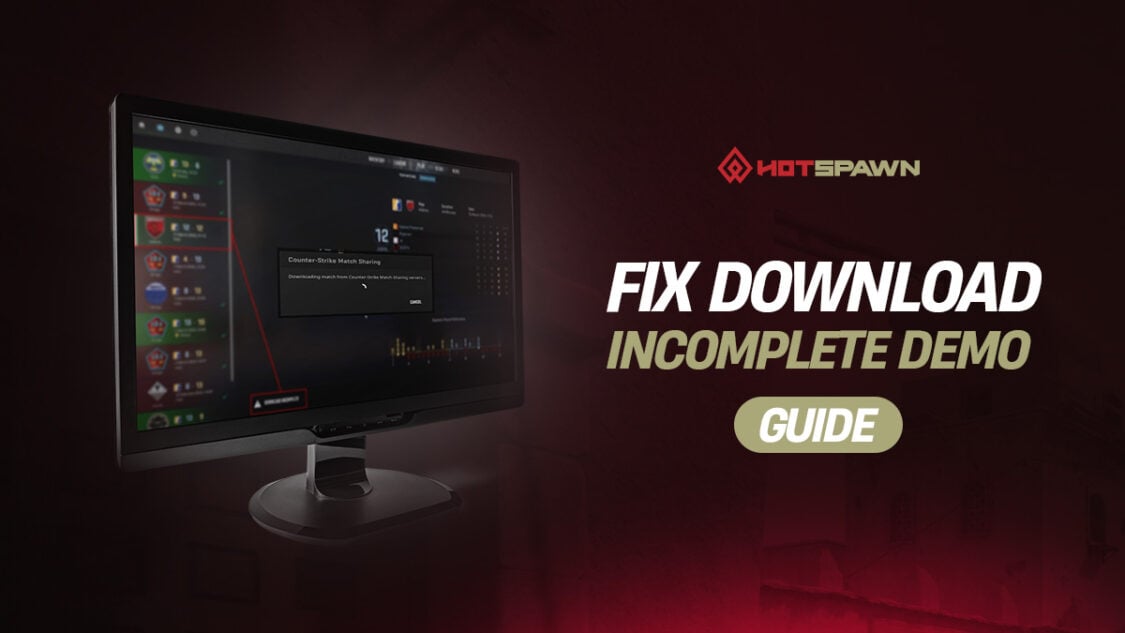
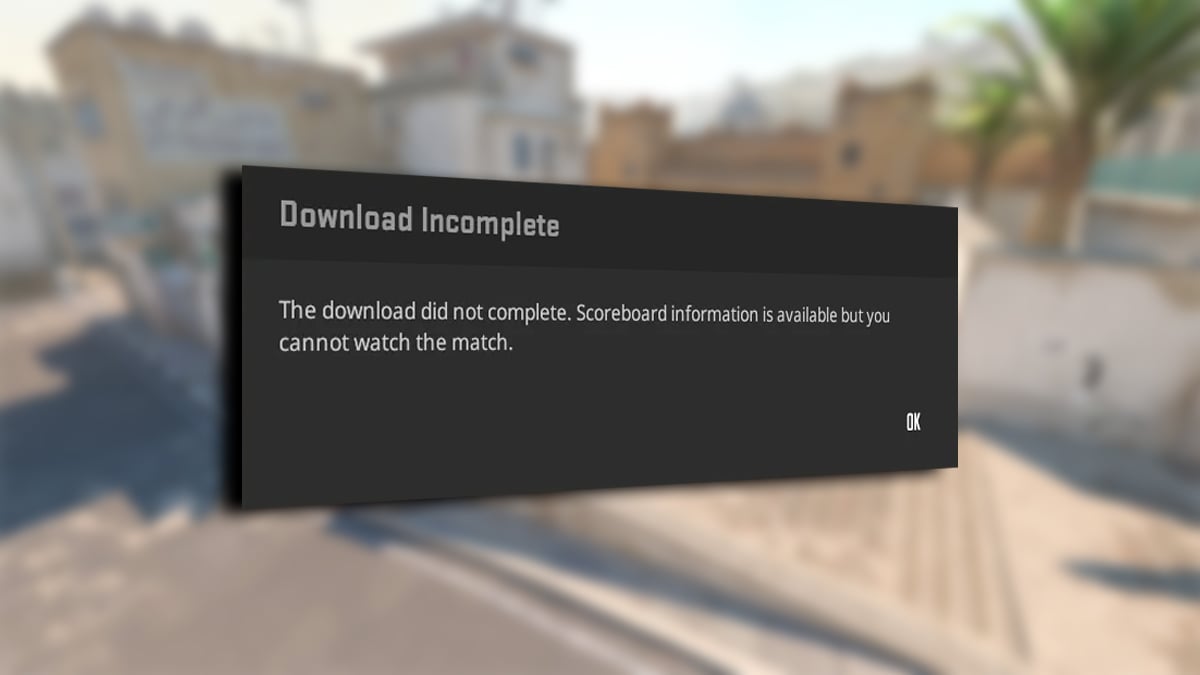
If you’ve seen the Download Incomplete CS2 demo error while trying to load or save a match replay, you’re not alone. This CS2 Download Incomplete demo error can be extremely frustrating, and is very common when trying to download your most recent demos. Not to worry – we’ve got the solutions you can try for a CS2 demo error fix, so you can get back to analyzing your matches and reviewing your highlights in no time.

CS2 Download Incomplete Demo Error Fix Guide (2026)

Why the Download Incomplete CS2 demo error appears

There are several reasons you might see the Download Incomplete CS2 demo error message. In short, the game is expecting to play or download a full match replay, and can’t start until it has what it needs. This could be down to a few things, including corrupted demo files, interrupted downloads, or just good old-fashioned network hiccups.

In most cases, you’ll see the CS2 Download Incomplete demo error when downloading a match replay within seconds of coming out of a game. However, this isn’t necessarily the only occasion this issue appears, so it’s important to look at all options when considering the right CS2 demo error fix.

How to fix CS2 Download Incomplete demo error

CS2 Download Incomplete Demo Error Fix

There are a few steps you can take to fix the Download Incomplete demo error in CS2, assuming the match replay files aren’t totally corrupted.

  1. First things first, delete the demo file. You won’t be able to redownload the demo unless you’ve deleted it, so start there.
  2. If you are downloading a demo immediately after a match, wait a few minutes. It’s extremely likely that the demo simply hasn’t processed yet, and this will fix the CS2 Download Incomplete demo error for most players.
  3. Beyond this, it’s time to start trying more typical solutions for a CS2 demo error fix. Clear Steam’s download cache by heading into your Settings. Go to the Downloads tab, and hit “Clear Cache.” Reload Steam and CS2, and try to download again.
  4. Verify your CS2 game files on Steam.
  5. Check that you’re connected to Steam.
  6. Check the disk space on your PC. It’s possible you’re trying to download a demo that won’t fit onto your hard drive, but this is unlikely unless you’re running super low on storage space.
  7. If you aren’t already, try downloading the match replay over Ethernet instead of Wi-Fi.

Most players here will see the Download Incomplete CS2 demo error fixed by step two. But for those who haven’t solved their issue with the above steps, there is another process they can try for a proper CS2 demo error solution. However, this one isn’t possible when the Counter-Strike Network is down.

  1. Instead of downloading the match replay, click the small “Copy match sharing code” button next to the big green Download button.
  2. Paste the match sharing code into the browser of your choice. When prompted to open the link with Steam, press “Yes.”
  3. A pop-up should appear in CS2 named “Counter-Strike Match Sharing,” which says, “Downloading match from the Counter-Strike Match Sharing servers…”
  4. Wait for the demo to download. It will put you straight into the demo. Leave the game.
  5. You will now be able to play the demo from the main menu at any time.

This is arguably the most consistent way to resolve the CS2 Download Incomplete demo error. If the above steps haven’t resolved your issue, the match replay files may be corrupted.

Article Tags

No tags found

Tournaments

No tournaments found
Daniel Morris

Daniel Morris

Counter-Strike Content Lead
Daniel is a CS2 esports specialist, and now channels that expertise to discuss the game online. Despite his knowledge of Counter-Strike, he wasn’t quite good enough to go pro himself.
More from Daniel Morris >