CS2 Packet Loss Fix: All Solutions and Commands

Daniel Morris

Share:

CS2 packet loss has been touted as a major issue ever since the release of the game. Seeing players teleport from one place to another is beyond frustrating, and can often result in unfortunate deaths on the server. Sometimes, it’s not just a skill issue – it really is down to lag and packet loss.

CS2 Packet Loss Fix: All Solutions and Commands

We’re here to help fix packet loss in CS2, with some solutions that might help if you’re commonly experiencing this problem.

What is CS2 packet loss?

When the game server and your PC fail to communicate in-game data, that causes packet loss in CS2. That data has to be re-sent, which takes time, and those milliseconds are the lag that you, as the player, experience. There are lots of reasons why CS2 packet loss happens, but that doesn’t make it any less annoying.

How to check packet loss in CS2

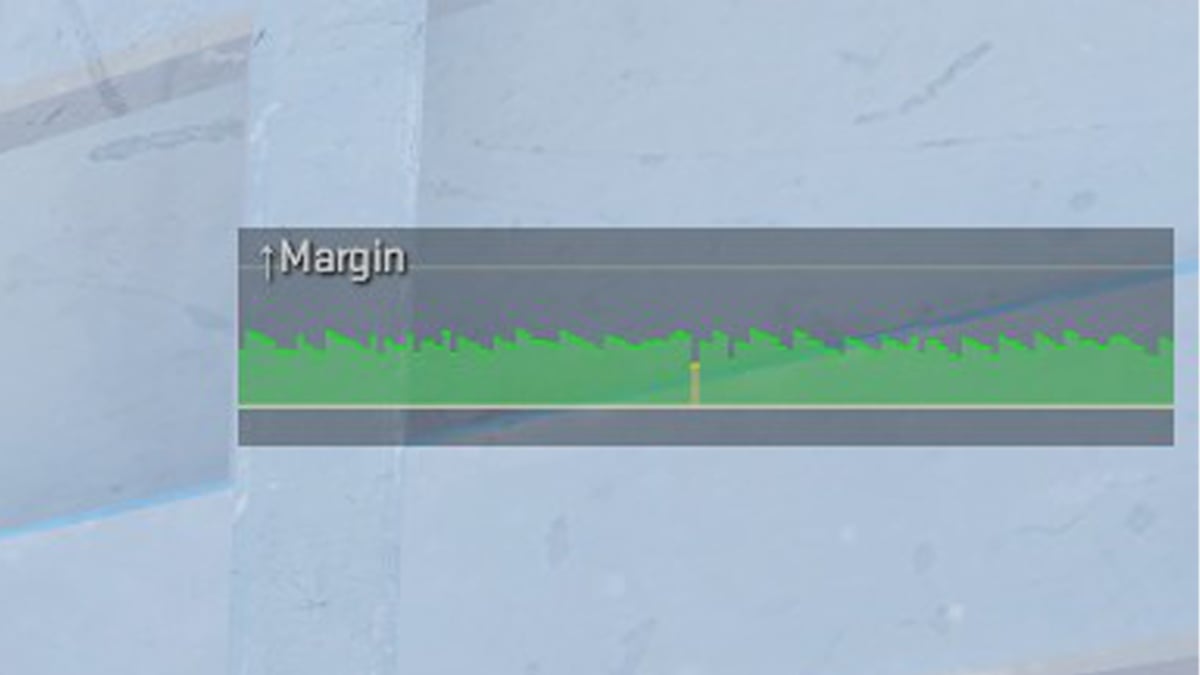
If you’re unsure about whether you’re experiencing CS2 packet loss, there’s a command to check. Enter “cl_hud_telemetry_serverrecvmargin_graph_show 2” into the console and head into an online match. A graph will appear in the top-right corner – watch out for any red anomalies. When they appear, that’s your packet loss in CS2. Easy to check, harder to fix.

CS2 Packet Loss

Reasons for CS2 packet loss

The reasons why you’re experiencing CS2 packet loss could be tenfold, from a poor internet connection to outdated drivers. So, finding the best fix for packet loss in Counter-Strike is simply a matter of trial and error, discovering exactly what is causing your problems. What works for you may not work for another player.

Best ways to fix CS2 packet loss

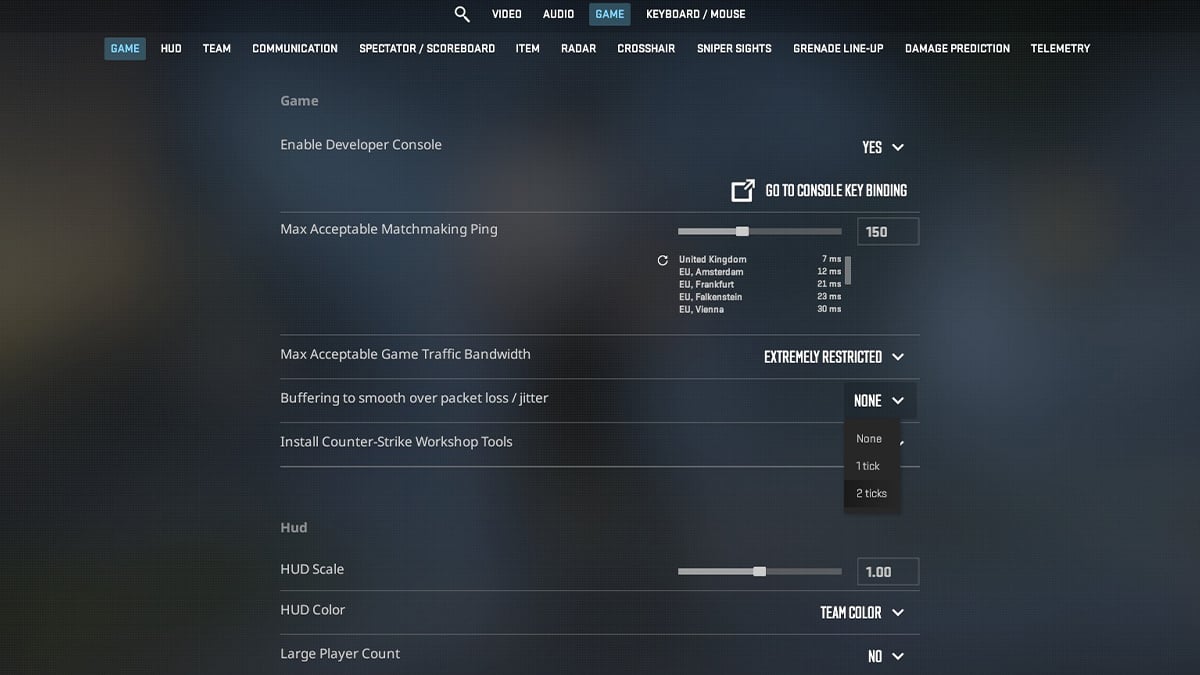
The first CS2 packet loss fix to try is done in-game, in your settings. Valve has added a CS2 setting to help with packet loss lag, and it can be found under the “Game” tab. Track down the “Buffering to smooth over packet loss/jitter” setting, and change it to either “1 tick” or “2 ticks,” depending on how severe the problem is. One thing to note – if you’re not experiencing CS2 packet loss, don’t turn this setting on just because. It will make your general experience worse, unless you have consistent packet loss in CS.

CS2 packet loss fix setting

Overall, though, this is the best CS2 packet loss fix because it comes directly from Valve. Third-party programs can’t properly diagnose the issue, so the solution lies in the game. Another in-game solution reported to work is by using the CS2 console commandnet_client_steamdatagram_enable_override 1“. Some players have reported this as fixing the worst of their CS2 packet loss problems, so it’s worth a try, though it’s had mixed results for players. Your mileage may vary.

Alternatively, you can try restarting your network connection. Sometimes, “turn it off and on again” really is the right solution. It may not be the super-techy CS2 packet loss fix you were hoping for, but I guarantee it’s the solution to someone’s problems. The same goes for network drivers – make sure they’re fully updated in your PC’s Device Manager. As another last resort, you can also head into the Task Manager and close all background apps that are running while you play CS2. You never know what’s quietly hugging bandwidth, and this can be the silent cause of packet loss in CS2.

Article Tags

No tags found

Tournaments

No tournaments found
Daniel Morris

Daniel Morris

Counter-Strike Content Lead
Daniel is a CS2 esports specialist, and now channels that expertise to discuss the game online. Despite his knowledge of Counter-Strike, he wasn’t quite good enough to go pro himself.
More from Daniel Morris >